ES File Explorer
Screenshots
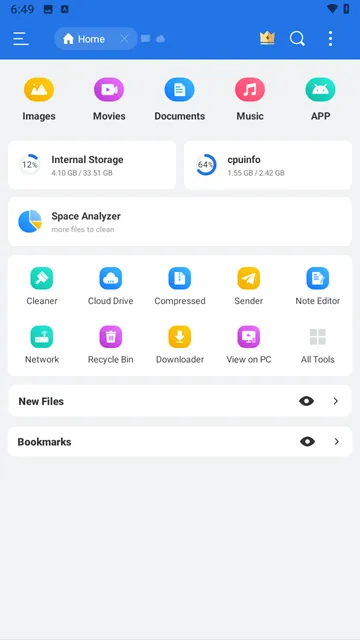
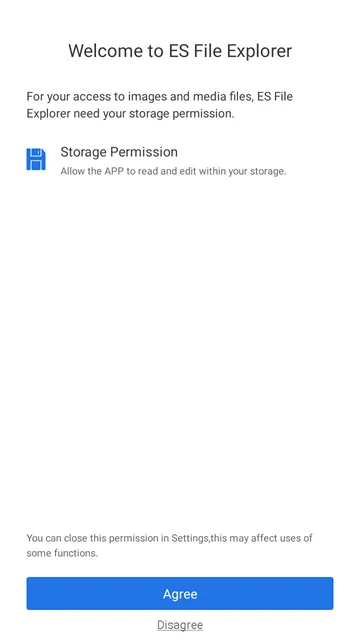
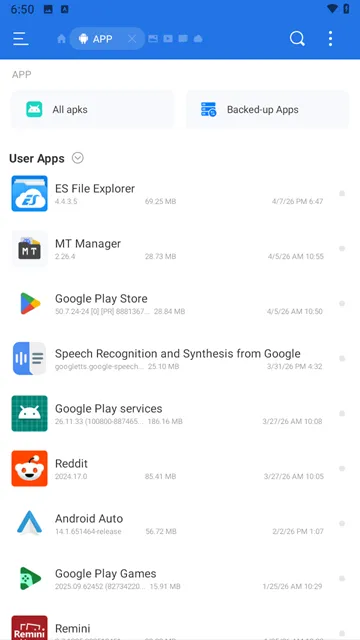
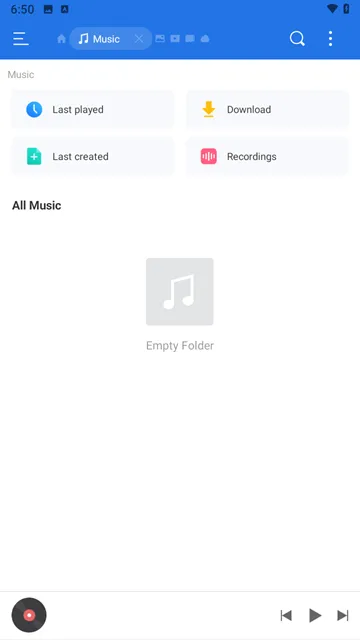
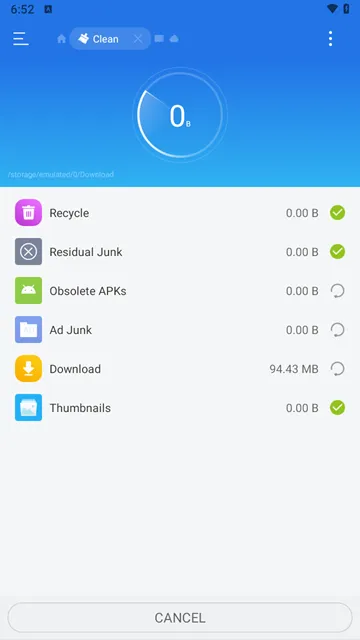
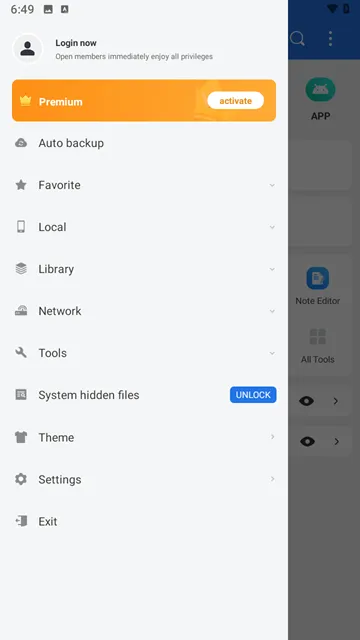
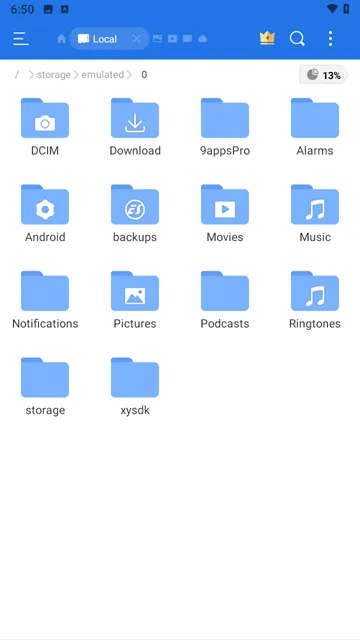
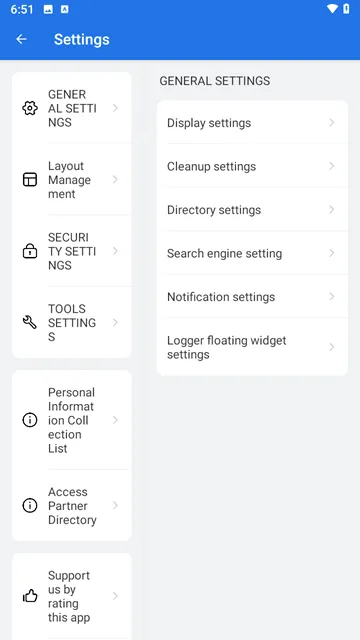
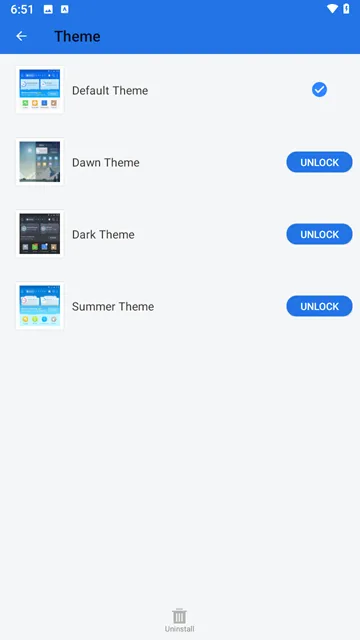
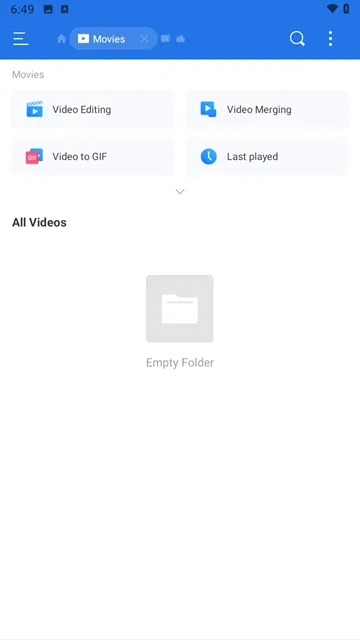
ES File Explorer is a famous management tool for Android users. It helps you organize your files, photos, and music in one place. You can use it to handle your local storage and your cloud accounts. This app makes it easy to find what you need on your phone or tablet.
The app works like a desktop computer’s file explorer. It allows you to move, copy, and rename documents with simple taps. You can also use it to clean up junk files and save space. This tool remains a popular choice for power users who want full control over their mobile devices.
How to Download and Install ES File Explorer APK for Android
Managing files on your Android device becomes much easier with the right tools. ES File Explorer remains a popular choice for many users due to its versatile features. While it is no longer available on the official Google Play Store, you can still install it using an APK file.
Follow this guide to learn how to download and install ES File Explorer safely.
Why Choose ES File Explorer?
This app offers more than just basic file browsing. It acts as an all-in-one management suite for your smartphone. Here are some of the key features:
- Cloud Storage Integration: Connect to Google Drive, Dropbox, and OneDrive.
- File Compression: Zip and unzip files directly on your phone.
- App Manager: Uninstall or back up your applications easily.
- Root Explorer: Access system folders if you have a rooted device.
- Built-in Viewers: Watch videos or view images without leaving the app.
Step 1: Enable Unknown Sources
Android devices block installations from outside the Play Store by default. You must change your settings to allow the APK file to run.
- Open the Settings menu on your Android phone.
- Navigate to Security or Privacy settings.
- Look for the option labeled Install Unknown Apps or Unknown Sources.
- Toggle the switch to On for your mobile browser (like Chrome).
Step 2: Download the ES File Explorer APK
Since the app is not in the Play store, you must find a reliable website to get the file.
- Open your mobile browser.
- Visit Filetomob.com.
- Search for ES File Explorer APK Download.
- Navigate to the app page.
- Click the download APK button and wait for the file to save to your device.
- A warning may appear stating the file “might be harmful.” Click Download Anyway to proceed.
Step 3: Install the Application
Once the download completes, you are ready to install the app.
- Pull down your notification bar and tap the Download Complete alert.
- Alternatively, open your “Files” or “Downloads” folder and tap the APK file.
- A prompt will ask if you want to install the application. Tap Install.
- Wait a few seconds for the process to finish.
- Tap Open to launch the app immediately or Done to close the installer.
Important Safety Tips
Using APK files requires caution. Because you are bypassing the Play Store’s security checks, you should keep these tips in mind:
- Check Permissions: Review the permissions the app requests during installation.
- Keep it Updated: Check your source regularly for newer versions to ensure you have the latest security patches.
ES File Explorer For Android Core Features
ES File Explorer remains a legendary name in the Android world. Even with many new competitors, its diverse toolkit keeps it relevant for power users. This app simplifies how you interact with your phone’s storage and beyond.
Powerful Multi-Protocol Support
One of the main reasons users stick with ES File Explorer is its connectivity. It bridges the gap between your mobile device and other hardware.
- FTP Support: You can turn your phone into a server or access remote files easily. This makes transferring data between a PC and a phone seamless.
- LAN (SMB): The app detects computers on your local Wi-Fi network. You can stream movies or copy documents from your laptop directly to your tablet.
- SFTP: For those who prioritize security, the app supports SSH File Transfer Protocol. This ensures your data remains encrypted during transit.
All-in-One Cloud Integration
Managing multiple cloud accounts can feel overwhelming. ES File Explorer solves this by acting as a single hub for your online storage.
Instead of switching between three different apps, you can link Google Drive, Dropbox, and OneDrive inside one interface. You can move a file from Dropbox to Google Drive with a simple copy-and-paste command. This unified approach saves time and keeps your digital life organized.
Advanced Access with Root Explorer
Standard file managers often hide important system files. However, ES File Explorer caters to the “pro” community through its Root Explorer feature.
If you have a rooted device, this tool grants you “God mode” over your operating system. You can delete bloatware, edit system configuration files, and change file permissions. It provides total control for those who want to customize their Android experience deeply.
Built-in App Manager
The app does more than just move folders. It includes a robust App Manager that handles your software library with ease.
- Backups: You can create copies of your installed apps as APK files.
- Uninstallation: It allows you to remove multiple apps at once to save time.
- Sharing: You can send APKs to friends via Bluetooth or email directly from the manager.
Seamless Media Players
Efficiency is key to the ES experience. You do not need to exit the app to view your content because it includes native Media Players.
The built-in image viewer loads high-resolution photos quickly. Similarly, the internal video player supports various formats, allowing you to preview clips instantly. These tools make the app feel like a complete operating system rather than just a basic file browser.
Powerful Storage Analysis
Running out of space is a common mobile frustration. ES File Explorer includes a Storage Analysis tool that acts like a health check for your device.
- Large File Finder: It quickly scans your folders to find giant files you may have forgotten.
- Junk Cleaner: It identifies redundant data, such as old cache files and empty folders.
- Visual Reports: The app provides a clear breakdown of what is taking up space, such as images, videos, or documents.
Batch Renaming and File Compression
Organizing a large number of files manually is tedious. ES File Explorer simplifies this with efficient batch tools.
You can select hundreds of photos and Batch Rename them in seconds. This allows you to give them a consistent name and number format. Furthermore, the app features robust Compression Tools. You can create ZIP or RAR archives directly on your phone. It also allows you to decompress and extract files, making it easy to handle downloaded email attachments.
Smart Clipboard Management
Unlike the standard Android clipboard, this app features an Advanced Clipboard. It allows you to “Cut” or “Copy” multiple items from different locations before pasting them.
Most file managers only let you move one item at a time. With ES File Explorer, you can collect files from various folders and deposit them all into a new destination at once. This multi-select capability significantly speeds up your workflow.
Secure File Encryption
Privacy is a major concern for many users. The app includes a built-in Encryption Tool to protect your sensitive documents.
- Password Protection: You can lock specific files so only you can open them.
- Secure Sharing: You can send encrypted files to others, ensuring that the data remains private even if intercepted.
- Hidden List: You can move private photos or videos to a hidden list that does not appear in your phone’s main gallery.
Remote Access via PC
One of the most unique features is the Access from PC function. It allows you to manage your phone’s storage using your computer’s web browser.
Once you enable this feature, the app provides a local IP address. You type this address into your PC, and you can instantly download or upload files wirelessly. You do not need a USB cable or special desktop software. This turns your phone into a temporary wireless drive for quick data transfers.
ES File Explorer for Android: The Core of File Management
ES File Explorer remains a powerhouse for Android users who crave total control over their devices. While many basic file managers exist, this app offers a desktop-grade experience right in your pocket.
Here is a breakdown of the core features that make ES File Explorer a top choice for file management.
Local File Browsing: A Familiar Experience
The app stands out because it brings a “Windows-like” interface to the mobile world. This familiar layout makes it incredibly easy to navigate your internal storage and SD cards. You do not have to guess where your files are because the design is intuitive and clean.
Customization and Views
ES File Explorer allows you to tailor the interface to your specific needs:
- Multiple View Modes: Choose between icons, lists, or detailed grids to see your files clearly.
- Smart Sorting: Organize your data by name, size, type, or the date it was modified.
- Visual Themes: Personalize the look of your manager with various themes to match your style.
Because of this flexibility, finding a specific photo or document takes only a few seconds.
Root Access for Power Users
Advanced users often choose ES File Explorer for its Root Explorer feature. If you have a rooted device, this tool unlocks the hidden layers of your operating system.
Why Root Explorer Matters
- System Modification: You can access and modify protected system files that are usually off-limits.
- Customization: Edit host files or change system-level settings to improve performance.
- Total Control: Delete stubborn files that the standard Android interface refuses to touch.
Consequently, this feature keeps the app relevant for tech enthusiasts who want to push their hardware to the limit.
The Integrated App Manager
Beyond moving folders, ES File Explorer acts as a central hub for your applications. The built-in App Manager simplifies the way you handle your software library.
Key Management Tools
- APK Backups: Save your favorite apps as APK files. This allows you to reinstall them later without using data or the Play Store.
- Bloatware Removal: Quickly identify and uninstall pre-installed apps that take up valuable space.
- Batch Installation: Save time by installing multiple apps at once instead of clicking them one by one.
By using these tools, you can keep your device organized and free of digital clutter. The active interface ensures that you spend less time searching and more time using your device effectively.
ES File Explorer Network & Cloud Features
ES File Explorer is more than just a basic file manager. It acts as a digital bridge between your smartphone, your computer, and the cloud. By mastering its network features, you can stop hunting for USB cables and start managing your data wirelessly.
Master Your Home Network with LAN (Samba) Support
The LAN (Samba) feature allows your Android device to communicate directly with your Windows PC or Mac over your home Wi-Fi. It uses the SMB protocol to view shared folders as if they were stored on your phone.
- Wireless Streaming: You can stream high-definition movies stored on your PC directly to your phone screen.
- Easy Transfers: Copy large documents or photo albums from your computer to your mobile storage without plugging in any wires.
- Centralized Access: Access a “Network Attached Storage” (NAS) device to manage all your family media in one place.
To get started, ensure your PC folders are set to “Shared.” Open ES File Explorer, scan your network, and enter your PC credentials to begin browsing.
Seamless Cloud Integration
Managing multiple cloud storage accounts can feel overwhelming. ES File Explorer simplifies this by consolidating your favorite services into a single interface. You can move files between different clouds or from your phone to the web with a few taps.
The app supports several major providers:
- Google Drive: Access your work documents and Google Photos effortlessly.
- Dropbox: Sync your creative projects and shared folders.
- OneDrive: Stay connected to your Microsoft ecosystem and Office files.
- Baidu Netdisk (百度网盘): Connect to one of the largest storage providers for high-capacity backups.
By linking these accounts, you turn your phone into a powerful hub for all your remote data.
Remote Access: Turn Your Phone into an FTP Server
Sometimes, you need to manage your phone’s internal storage using the large screen and keyboard of your PC. The Remote Manager tool makes this possible by turning your phone into an FTP (File Transfer Protocol) server.
Follow these simple steps to connect:
- Activate: Open the “Network” menu in the app and select “Remote Manager.”
- Turn On: Tap the “Turn On” button to generate a unique IP address (e.g., ftp://192.168.1.5:3721).
- Connect: Type that address into your PC’s file explorer or a web browser.
- Manage: You can now delete, rename, or download files from your phone wirelessly.
This method is often faster and more reliable than traditional Bluetooth transfers. It provides a clean, professional way to keep your mobile storage organized from your desktop.
ES File Explorer: The Toolbox
ES File Explorer remains a powerhouse for Android users who want more than just a basic folder viewer. While most apps focus on moving files, this app provides a comprehensive “Toolbox” that replaces several standalone utilities.
Powerful Built-in Utilities
ES File Explorer eliminates the need to download extra apps for daily tasks. It handles various file types natively, which saves both time and internal storage.
- Zip and RAR Support: You can compress files to save space or extract archives instantly. The app handles password-protected files securely without requiring a third-party unzipper.
- Integrated Text Editor: The built-in “ES Note Editor” allows you to view and edit text files or code snippets on the go. It is lightweight, fast, and perfect for quick configurations.
- Universal Video Player: You do not need a separate media player to check your clips. The internal player supports multiple formats and offers smooth playback directly from your folders.
Efficient Storage Analysis
If your device feels sluggish, the SD Card Analyst is your best friend. This feature goes beyond simple browsing to give you a bird’s eye view of your data.
- Identify Space Hogs: The analyst scans your storage to find the largest files on your device.
- Visual Breakdown: It categorizes data into images, videos, and documents so you can see exactly what is filling up your memory.
- Clean Up Junk: You can quickly delete redundant files or cached data that no longer serve a purpose.
Consequently, maintaining a fast and clean smartphone becomes a simple, one-tap process.
Advanced Media Tools
What truly sets ES File Explorer apart is its suite of media editing features. Most file managers ignore creativity, but this app embraces it.
GIF Maker
You can transform your favorite video segments into high-quality GIFs. This tool allows you to select specific frames and convert them quickly for sharing on social media.
Video Merger
If you have several short clips from an event, you can use the Video Merger to combine them into a single file. This is a rare find in a file management app, as it provides basic editing functionality without the complexity of a professional suite.
Why These Features Matter
By using these tools, you streamline your mobile experience. You no longer have to jump between five different apps to edit a note, unzip a project, or trim a video. ES File Explorer acts as a central command center for your Android device, making it an essential utility for power users.
Frequently Asked Questions about ES File Explorer for Android
What is ES File Explorer?
ES File Explorer is a management app for Android devices. It helps you find, move, and organize your files. You can use it to manage photos, music, and documents. It also allows you to handle files stored in the cloud.
Is the app free to use?
Yes, the app has a free version. You can download it and use its basic features without paying. However, the free version usually contains advertisements. There is also a “Pro” version that removes these ads and adds more advanced tools.
Can I extract ZIP and RAR files?
Yes, you can manage compressed files easily. The app supports both ZIP and RAR formats. You do not need to download extra software to open these archives. Simply tap the file within the app to see what is inside.
Does it support cloud storage?
The app connects to many popular cloud services. You can link your Google Drive, OneDrive, or Dropbox accounts. This lets you move files between your phone and the cloud in one place.
Can I share files with a computer?
You can manage your phone files from a PC using a Wi-Fi connection. The app uses a “LAN” or “FTP” feature to link your devices. This makes it easy to transfer large photos or videos without a USB cable.
What other tools are included?
The app is more than just a file folder. It includes several built-in utilities:
- App Manager: Uninstall or back up your applications.
- Space Analyzer: Find large files that take up too much room.
- Media Players: Watch videos or listen to music directly in the app.
- Text Editor: Open and change simple text documents.
How do I clear storage space?
Use the “Cleaner” tool within the app. It scans for “junk” files, such as old cache data or empty folders. You can then delete these files with one tap to free up your memory.
Why can’t I see my SD card?
Check the app permissions in your phone settings. You must allow the app to “Access Files and Media.” Once you grant this permission, your SD card should appear in the side menu.
How do I hide files with ES File Explorer?
- Open the app and find your file.
- Tap and hold the file or folder.
- Then, select “More” from the menu.
- Choose “Hide” to make it invisible.
- To see hidden files again, go to settings.
- Enable “Show hidden files” under display options.
Can I recover deleted files using ES File Explorer?
No, the app does not have a recovery tool.
Once you delete a file, it is gone. However, check your phone’s recycle bin first. ES File Explorer has a “Recycle Bin” feature. Enable it in settings before deleting anything. Then, deleted files go there for 30 days.
Why does the app ask for so many permissions?
It needs broad access to work properly. For example, storage permission lets you see all folders. Network access enables cloud and sharing features. Nevertheless, be cautious. Deny any permission that seems unrelated to file management.
How do I free up space with this app?
Follow these steps:
- Open the “Analysis” tool from the main menu.
- Let the app scan your storage.
- Review large files and duplicate photos.
- Select what to delete.
- Confirm the removal.
This method works faster than manual searching.
What is the “Library” tab for?
The Library tab groups files by type. For instance, you see all images in one place. Similarly, videos, music, and documents appear separately. This layout saves you time. You do not need to browse endless folders.